
One of the best things about the HawkSoft agency management system is the ability to customize it for your agency and each individual user. In the last few months we’ve released several enhancements that help users customize the client view to surface important info at a glance and navigate clients, policies, and common workflows more quickly.
Need a refresher? Here are a few things you can configure today to make HawkSoft’s client view more personalized to your agency, role, and workflows.
In this article:
- Client Insights tab
- Client/policy view preferences
- Customize toolbar buttons
- More client view customization
Client Insights tab
Have you checked out the new Insights tab available on clients yet? This tab acts as a one-stop-shop where you can see highlights of the client’s policies, open items, and recent activities without clicking through multiple tabs and screens.
The best part is this dashboard is customizable! Click the gear icon in the top right corner to choose which widgets to show or change the display order, putting the information that’s most relevant to you front and center. You can also add the logs table to this screen if you’d like to combine the insights view with your logs view.
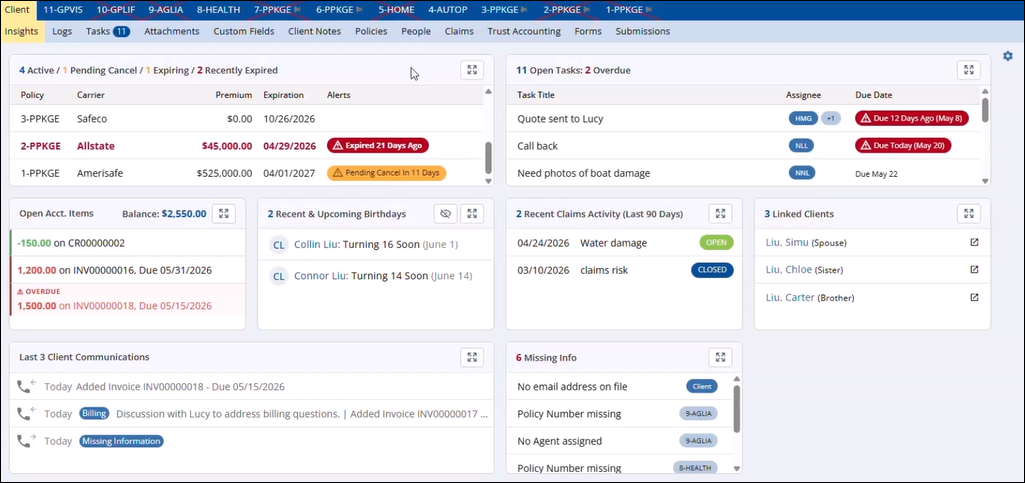
The Insights tab on a client
Client/policy view preferences
You can also customize how your client and policy tabs display to make it easier to find what you need faster. Click the filter icon on the right side of the client bar to make changes (extra tip: don’t forget you can click the carrot beside the filter icon to collapse the client info screen at the top if you want more space to view the tabs below).
This menu lets you choose what policy statuses are displayed – another helpful thing to set if you haven’t yet. Select Preferences to see the new view options.
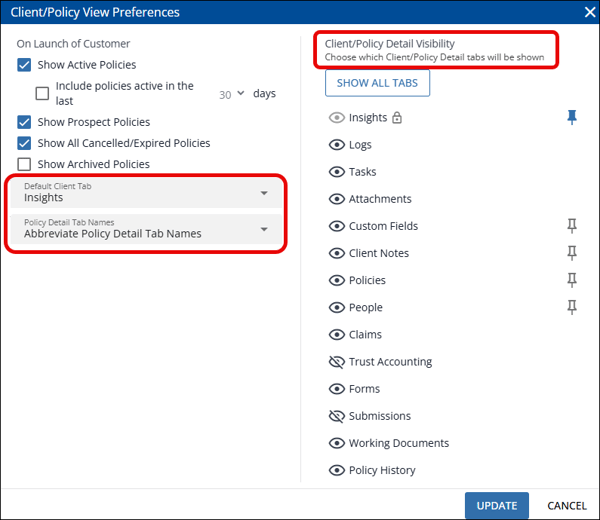
Here’s a quick rundown of the view options you can configure on this screen.
- Set a default client tab
Select which client tab is shown when you first open a client. We recommend setting it on insights, but you may want to set it to logs or tasks instead. - Pin client tabs
You can now pin client detail tabs to keep them visible even when you’re viewing a policy tab. - Hide less-used tabs
Click the eye icon beside each tab in the menu to show or hide them on the client, so you only see the ones that are relevant to you. - Use icons or abbreviations on policy detail tabs
Use the Policy Detail Tab Names dropdown to change the tabs to use abbreviations or icons instead of the full tab name, making room for more tabs on the policy bar.

Using icons and abbreviated names on policy detail tabs
Customize toolbar buttons
One of HawkSoft’s long-time customer favorite features is the customized toolbar where you can add shortcut buttons for Action Menu items, websites, or other applications you use frequently.
We’ve recently added a new library of HawkSoft icons you can use for these buttons, or you can upload your own. If you haven’t set up Customize Toolbar shortcuts yet, don’t wait any longer – they’re a huge time saver!
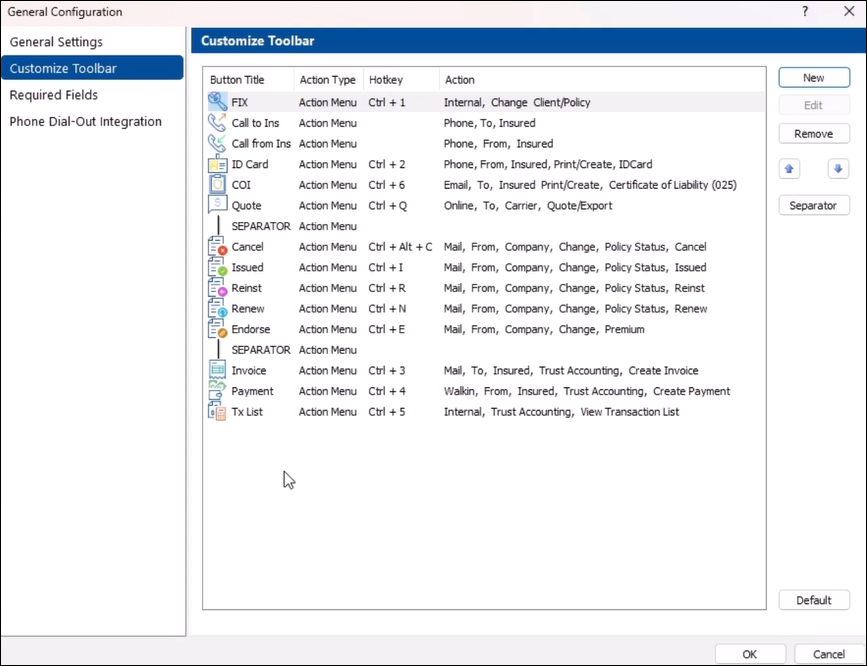
Customize Toolbar options
More client view customization in HawkSoft
These are just a few of the newest updates to the client view, but there are lots of other ways you can customize areas of the client view in HawkSoft. If you haven’t made use of them yet, make sure to check them out. It only takes a minute to configure your view options, and it could save you hours a month in faster navigation!
- Desktop view options
Set display options for the toolbar, side panel, themes, zoom level, and more. - Log list view options
Customize how your log list shows dates, activity tags, breadcrumbs, and more. Also see our recent updates on task appends and log view options. - Attachment list column and filter options
Customize how attachments are sorted, filtered, and grouped. - Task tab view and column options
Use the filters at the top of the Tasks tab to change which tasks display, and click the column options icon in the right corner to customize the columns.
Learn more about HawkSoft:
|