
Your team is probably already using Tasks in HawkSoft to keep track of their to-dos on clients and policies. But HawkSoft also offers a lot of great features for agency owners and office managers to help them customize the agency's task setup, easily view and monitor tasks and the agency level, and update tasks in bulk when needed.
Here’s everything you need to know to be an effective tasks admin for your team in HawkSoft.
In this article:
- Customize the settings for your agency & users
- Create task categories, templates, and triggers
- Track tasks with the Agency Tasks list
Customize task settings for your agency & users
The power is in your agency’s hands to decide how you want tasks to work with log notes, and who will be overseeing tasks for the agency in HawkSoft. Here are a few things to check in your agency and user permission settings.
Agency Tasks settings
In Agency Setup under Settings, there are two important settings you can configure for at the agency level regarding how client tasks work with log notes.
Requiring log notes on client tasks
Determine whether you want tasks to require creation of a log note. Remember, the info inside the task itself doesn’t remain on the client after the task is closed, so you may want all task-related actions to be documented via log notes. You can select whether to require log notes only when closing the task, or when creating or editing the task as well.
Automatically append task info on edit
You can also decide whether you want HawkSoft to automatically append the task details (task name, assignee, due date, etc) to the existing log whenever the task is edited.
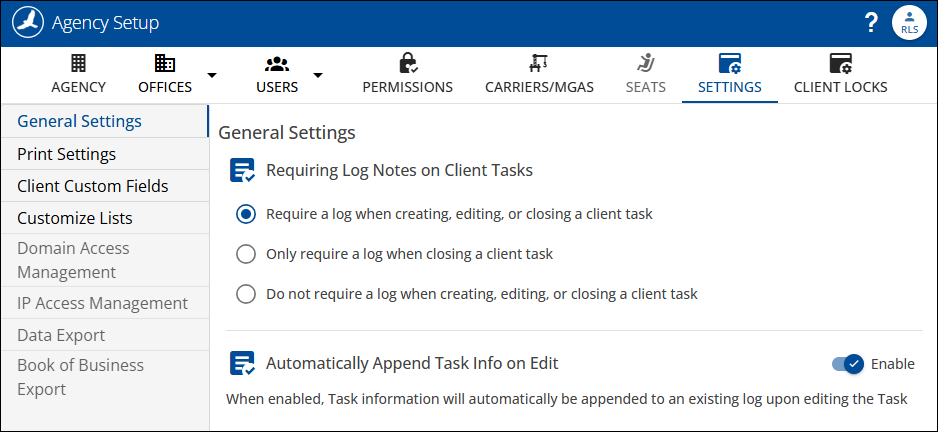
Agency-level settings for log notes on client tasks
Agency Tasks permissions
You should also decide who will be managing tasks at your agency and should have access to the Agency Tasks list and settings. You can update these permissions in Agency Setup under User Permissions > Tasks.
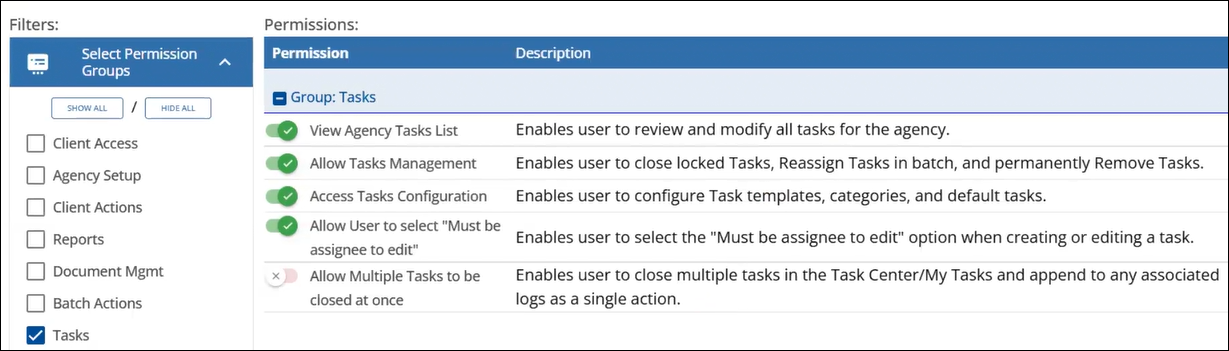
User permissions for Agency Tasks
Create task categories, templates, & triggers
In the Settings area of the Task Center, your task admins can set up important agency-wide task features like task categories, templates, and default task triggers. Creating these will help your admins and team spend less time on creating and organizing tasks, making common tasks plug-and-play.
You can see our previous article on simplifying task creation in HawkSoft to learn more about each of these items, or watch our Tasks webinar by Noemi, an Agency Success Advisor at HawkSoft.
Noemi also shared some quick tips on how to get started:
- Add task categories first, then fill in templates for each category.
- Start with templates for your 10 most common types of tasks, and expand from there.
- Create download rules to assign tasks for renewals (including premium uprates), new business, and cancellation. Don’t forget to set a fallback user!
- Create default task triggers for common agency actions like policy status changes, client imports, and E-Signature sends.
- Review and refine your templates monthly or quarterly to remove old ones, make updates, or add templates for new processes.
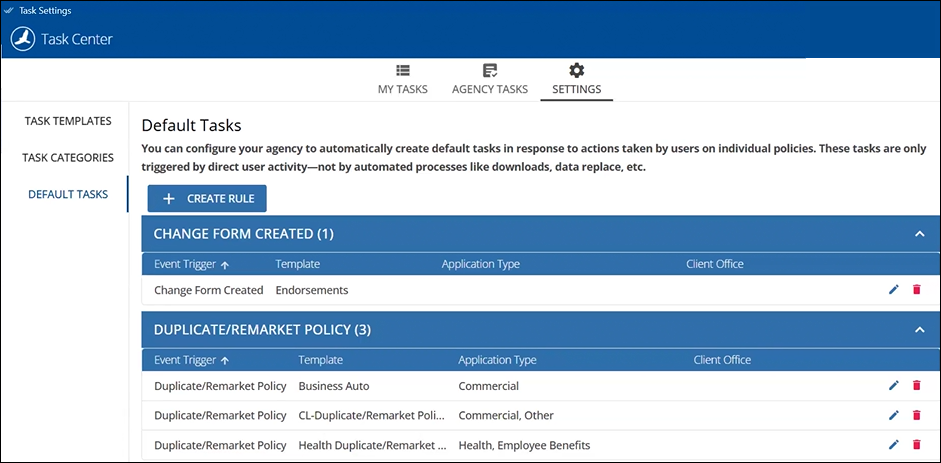
The Task Settings area, where admins can create task templates, categories, and default triggers.
Track tasks with the Agency Tasks list
The Agency Tasks list in the Task Center is the one-stop shop for your admins to view and filter tasks, see quick summaries by person or category, and update tasks in bulk when needed.
The Agency Tasks view is totally customizable to help you sort, filter, and view your agency’s tasks in the way that works best for you. By default, tasks are grouped by Assignee with columns for each status (overdue, due today, in process or not started, etc). Here’s an overview of the different things you can do from the Agency Tasks view.
Customize your summary view
You can use the Customize View button to remove columns, or to add a column for your own custom date range, such as upcoming tasks in the next month. You can also change the Group By option to view tasks by category, priority, carrier, or office. Plus, clicking any column header will sort the data by that column.
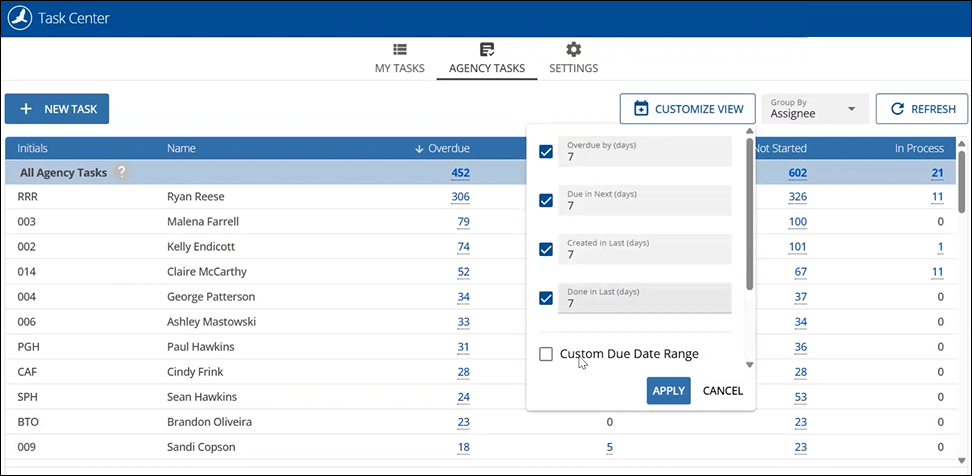
The Agency Tasks summary view, with customizable date ranges.
Drill down and filter tasks
Once you decide how to group your summary view, click the task number in any column to drill into that group of tasks and filter further. From here you can see the list of individual tasks and filter by a second level. You can even filter by keywords in the task title, or by tasks associated with log notes or attachments.
For example, you could group your summary view by category and then click into a specific category, such as tasks related to renewal. From there you could filter again by status to see at a glance how many renewal tasks are overdue and in process.
In the detail view you can click the Columns button to reorder, remove, or add columns – for example you can add columns for different policy dates or offices. Click any task in the list to see the details and update it if needed. You can also export any detail view to CSV, if you’d like to print out a task list for review or sharing.
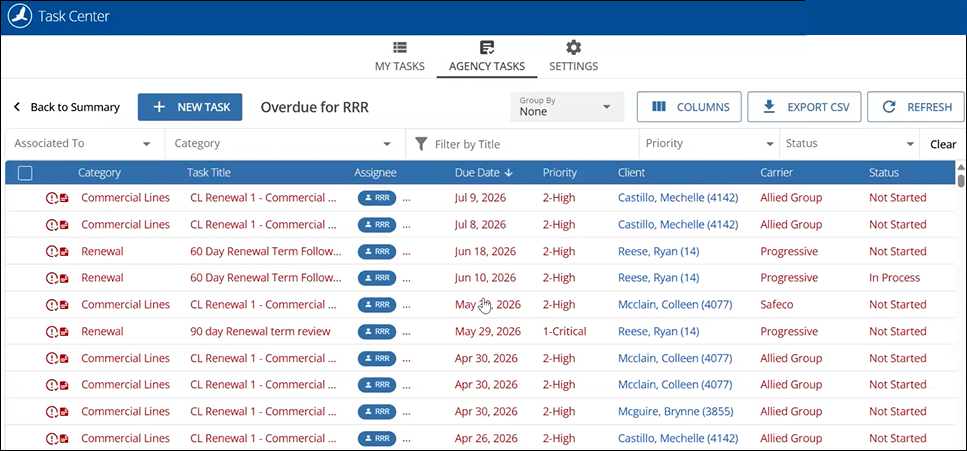
A detail view of overdue tasks assigned to a specific user, with the ability to sort, group, or filter the list further.
Reassign or close multiple tasks at once
Your task admins can also perform bulk task actions from the Agency Tasks list if needed, like reassigning tasks to a different user if a staff member is leaving, or closing out old or irrelevant tasks. You may want to have an admin do an audit on a monthly or quarterly basis to make sure your agency task list stays as clean and up to date as possible.
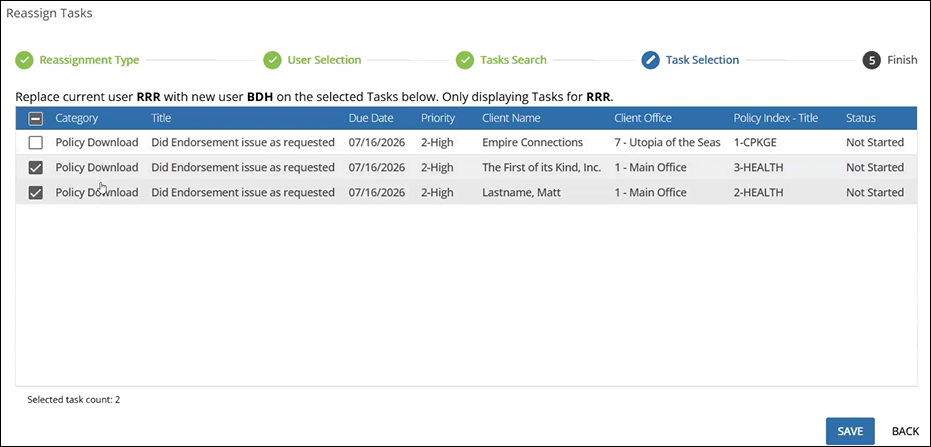
Reassigning selected tasks to a different user.
Get agency tasks organized
Managing the tasks for all the users at your agency may feel daunting, but taking the time to customize your settings, configure your agency tasks view, and set up features like templates and default triggers will help your agency spend less time on task setup and more time crossing things off the list.
Learn more about TasksCheck out these resources to learn more about Tasks in HawkSoft! |