Wondering how you can speed up the process of creating and assigning tasks to team members in HawkSoft 6? There are a few things your agency can configure to ensure tasks are created for your common agency processes in fewer (or no) clicks. We’ll go over how you can utilize templates, download rules, and default task triggers to maximize your task efficiency in HawkSoft.
In this article:
- Create templates for common tasks
- Set task rules for downloads
- Set triggers for default tasks based on user actions
- Customize your user settings for new tasks
Create templates for common tasks
In the Task Center under Settings, you can create templates for your agency’s most common recurring tasks. Then when a user is creating a task, they can simply select a template to pre-fill the description and settings. This makes it quick and easy to create new tasks without all the manual entry, and ensures everyone’s working from the same task instructions and processes.
Templates can be assigned to one or more users or agency roles, and due dates can be set based on events like task creation and policy dates. In the Settings area you can also create task categories, which help you organize your tasks and templates by category.
> Learn more about task templates
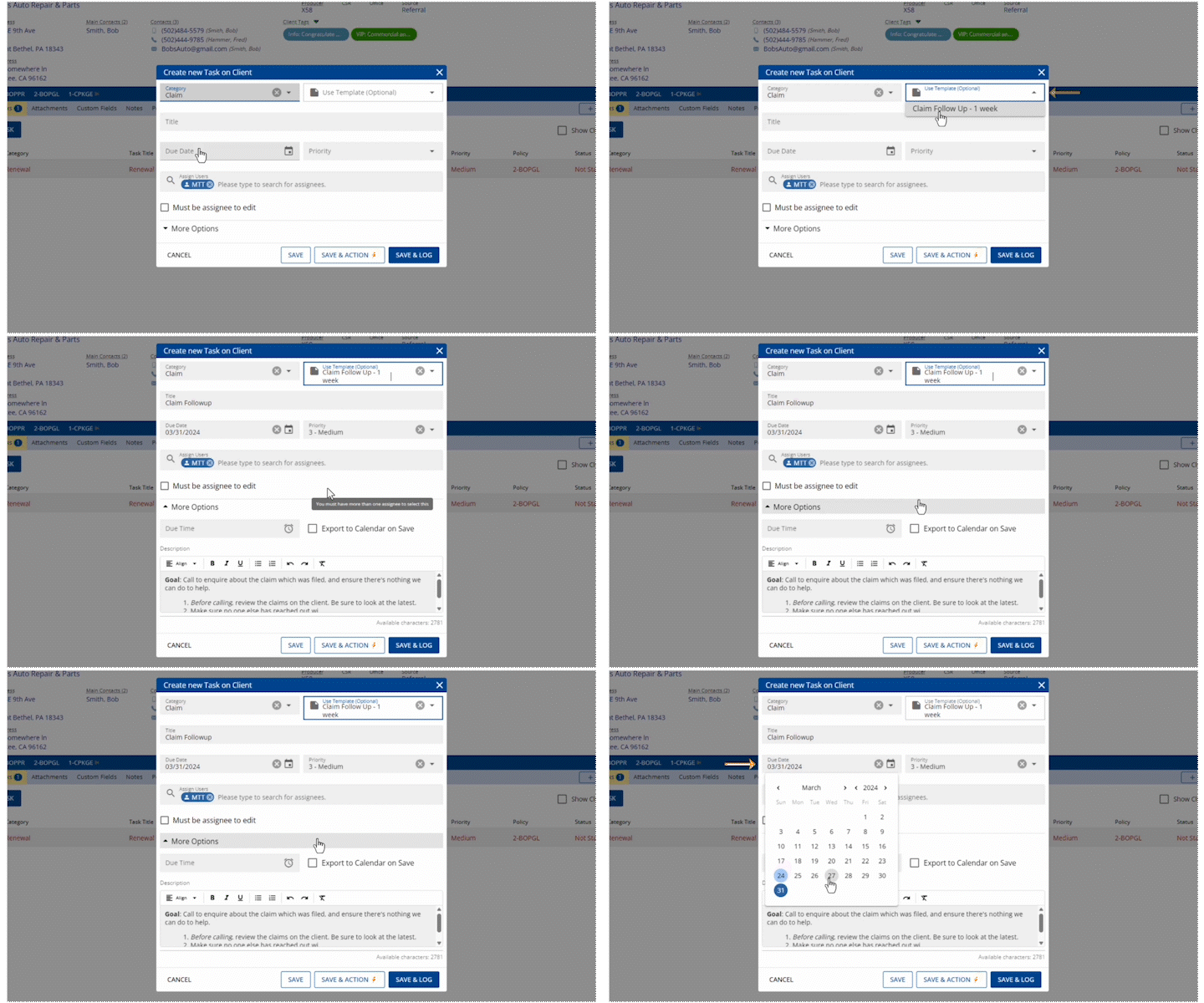
Selecting a template to populate a new task
Set task rules for downloads
Policy downloads are one of the biggest drivers of tasks for an agency. In the Download Dashboard under Configure > Tasks, you can create download task rules that will automatically create tasks when downloads come in. You can create rules based on download type (new, renewal, cancellation, etc), personal or commercial lines, or office.
Then just save the task instructions and choose one or more users or roles for the task to be assigned to. You can assign a due date for your desired amount of time before/after relevant policy dates.
> Learn more about download task rules
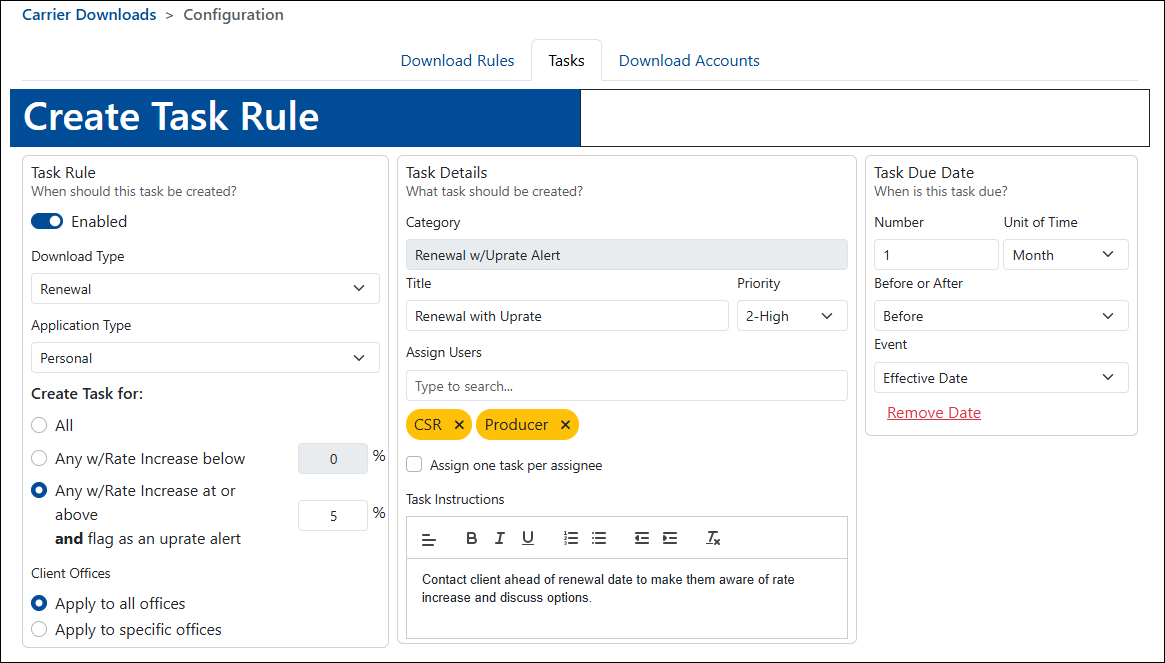
Creating a download task rule for renewals
Tip: Get alerts for premium changes
You can use download task rules to alert you when the premium is increasing on a policy! Just select Renewal or Renewal Quote as the Download Type and choose what percentage increase you want to create a task. Watch our video on how to create task rules for renewal uprates.
Set triggers for default tasks based on user actions
In the Task Center under Settings, you can also create default task rules that are automatically created when certain user actions are performed on a client or policy, like changing a policy status, importing or creating a client, remarketing a policy, sending a document for E-Signature, and more. There are over 20 different actions you can select as a trigger!
Simply select which task template to use for each rule. You can also set conditions to only create tasks for specific carriers, LOBs, billing types, or offices. This lets you ensure standardized tasks are automatically created when specific events happen, using your chosen timeframe.
> Learn more about default task rules
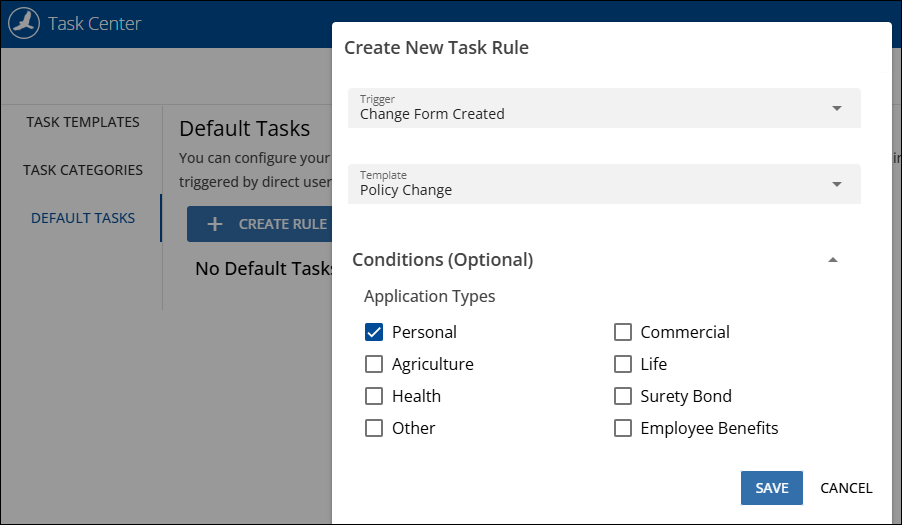
Creating a default task rule in HawkSoft
Customize your settings for new tasks
One more tip for faster task creation: customize your user settings for creating new tasks. You can do this by selecting the gear icon in the top right corner when creating a task. These items can be customized per user and will remember your chosen settings every time you create a new task. Set them one time to save clicks every time you create a new task!
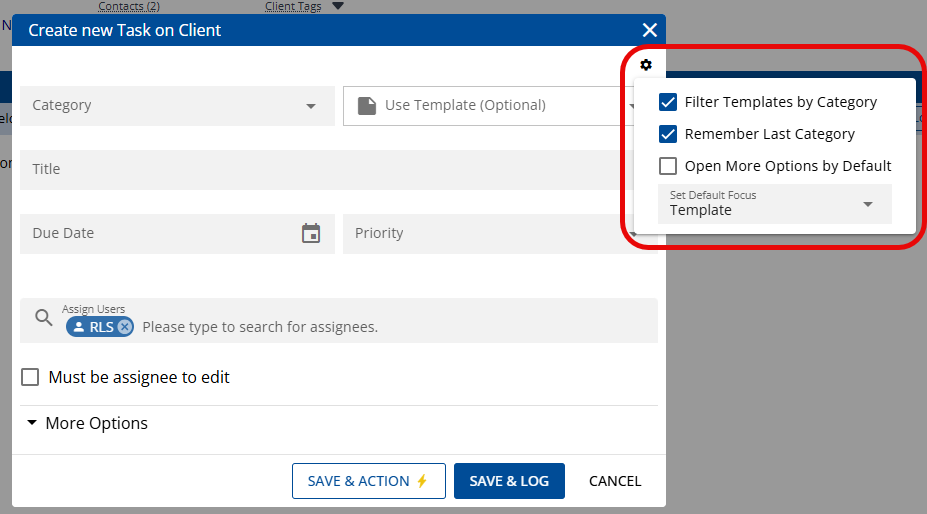
Customizing settings for new tasks
Filter Templates by Category
Choose whether you want to sort the task templates in the dropdown alphabetically or by category. This is a good option if you primarily use one category of tasks.
Remember Last Category
This will keep the last task category you used selected in the Category dropdown the next time you create a task. This will save clicks if you primarily create tasks in one category.
Open More Options by Default
This will expand the fields under “More Options” by default so you don’t have to click it each time to set optional fields.
Set Default Focus
This lets you choose which field on the new task for the cursor to start in, so you can start typing right away without clicking first. Choose whichever field you like to fill out first in a task!
> Learn more about creating new tasks
Learn more about TasksCheck out these resources to learn more about Tasks! |